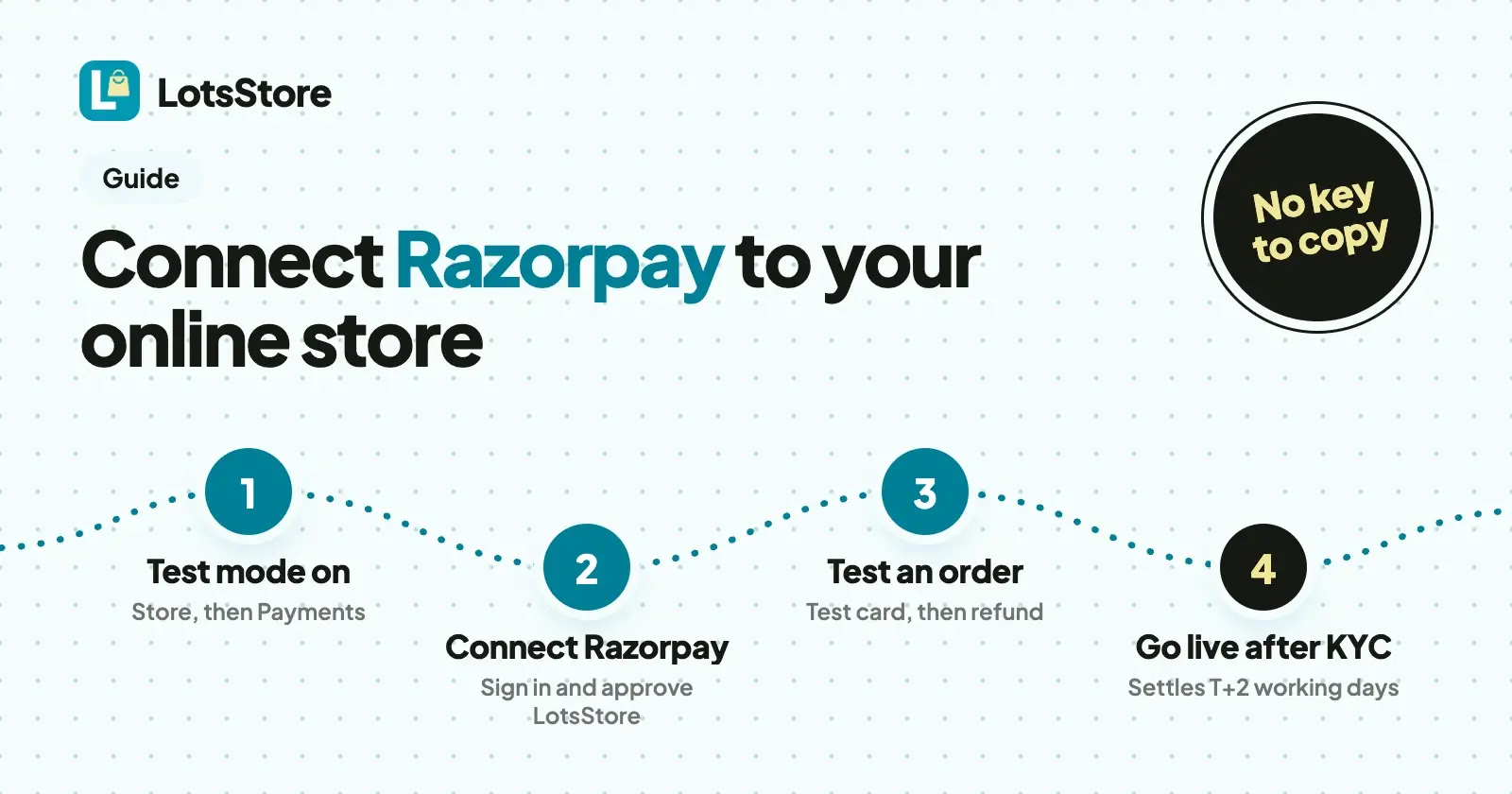
To connect Razorpay to your LotsStore store, open the store's Payments page, set it to Test mode, click "Create or connect Razorpay", sign in to Razorpay and approve LotsStore. Tick Enabled and save, place a test order, then switch to Live mode once Razorpay has activated your account. There's no key to copy, and the money settles to your own bank.
Razorpay is for businesses registered in India. It lets your shoppers pay by card, UPI, netbanking or wallet, and LotsStore takes 0% of your sales: Razorpay charges its own fee, and we add nothing. Below are the exact steps, what Razorpay asks for before you can take real payments, and when the money reaches you. Razorpay facts come from Razorpay's own docs, checked on 23 October 2026.
What you need before you start
- A LotsStore store. Create one on a free yourstore.mylots.store address (you can add your own domain later). The store's country sets its currency, and it can't be changed later, so pick India if you want to sell in rupees.
- A Razorpay account, or a few minutes to make one. You can create it during the connect step. Razorpay's Test mode is available as soon as you sign up, and you can use it for as long as you like.
- Your KYC documents, for going live. Razorpay's live mode opens only after you activate your account. Its setup guide asks for your PAN (a business PAN and an authorised signatory's PAN for companies), business documents for registered businesses, your bank account and your website or app links. Razorpay says businesses with existing Central KYC records can be verified in minutes, without video KYC.
- Owner or admin access to the store. Payment settings on LotsStore are for owners and admins, so an agency can invite a client as admin and let the client connect their own Razorpay account.
Step 1: Connect Razorpay in test mode
- In your LotsStore dashboard, open your store, then Payments. Set Environment to Test mode and save.
- On the Razorpay card, click Create or connect Razorpay. Razorpay opens.
- Sign in to your Razorpay account, or create one. If you don't see a sign-up option, open the link in a private window or sign out of Razorpay first.
- Review the access Razorpay shows you and approve LotsStore. You come back to your Payments page, and the Razorpay card says Connected.
- Tick Enabled, choose whether to review every order or accept paid orders automatically, and click Save payment settings.
You never give us your Razorpay password or an API key. You sign in on Razorpay's own site and see what you approve. This is Razorpay's OAuth flow, which Razorpay describes as getting access "with the consent of the user, without them having to compromise their API key secret." LotsStore uses the access only to create payments for your orders, check whether they were paid, and make the refunds you approve, and it's stored encrypted.
Step 2: Place a test order and refund it
- With Enable checkout on, place an order on your own store and pay with one of Razorpay's test cards. Razorpay says any future expiry date and any CVV work, and no real money moves.
- Check that the order shows as paid in Orders.
- Refund it from the order page, then check the refund in your Razorpay Dashboard.
If you chose to review every order, you'll see it waiting for you to accept. On LotsStore you accept each order before it goes ahead, and rejecting an order that was paid online queues its refund, so you never keep money for something you can't send.
Step 3: Go live after Razorpay activates your account
Razorpay checks your business details (KYC) before it activates live payments. When your account is activated:
- On the Payments page, set Environment to Live mode and save.
- Click Create or connect Razorpay again and approve LotsStore for your live account.
- Place one small real order, check it in Orders and in Razorpay, and refund it if you like.
That's it. Your store now takes cards, UPI, netbanking and wallets on Razorpay's own checkout.
When the money reaches you
Shoppers pay on Razorpay's checkout, so LotsStore never sees card numbers or UPI PINs and never holds your money. From Razorpay's docs, checked on 23 October 2026:
| What Razorpay says | |
|---|---|
| Settlement cycle | T+2 working days for domestic payments, where T is the day the payment is captured |
| Before you're paid | Your account must be KYC approved and fully activated, and the payment captured |
| Currency | Settled in Indian rupees, after Razorpay's fees |
| Faster payouts | Instant Settlements, an on-demand feature you request from Razorpay |
| Normal refunds | No processing fee, but the original transaction fee and GST aren't returned to you |
| Refund time for the shopper | Cards 5-10 days, netbanking 2-10 days, wallets 0-3 days, UPI 2-7 days |
Razorpay's own fee per payment is on Razorpay's pricing page. LotsStore adds nothing to it: you pay per store, and we take 0% of your sales.
Turning Razorpay off
Untick Enabled on the Razorpay card to stop offering Razorpay at checkout. To cut access completely, remove LotsStore from the connected apps in your Razorpay Dashboard. Orders already paid stay in your Razorpay account.
Other ways to get paid on the same page
Razorpay sits next to three other options on the Payments page, and you can turn on more than one:
- UPI to your own UPI ID. No payment provider needed: you confirm each payment in your bank app before you accept the order.
- Orders on WhatsApp. The shopper places the order on your store, and WhatsApp opens with the order number, items and total, so you settle directly.
- Stripe. If your business isn't registered in India, your own Stripe account is available in the countries Stripe supports: see connect Stripe.
I wrote more about taking orders from chat in how to sell on Instagram and WhatsApp without losing orders in DMs, and about how the keys and money are kept safe in is LotsStore safe?
Running client stores? Each one pays the client
If you're an agency, each client's store connects the client's own Razorpay account, so the money settles to their bank, not yours. Invite the client as admin on their store, and they connect Razorpay themselves. LotsStore Business covers 10 stores for $79 a month ($790 a year), with every feature on every plan; see the pricing page and LotsStore for agencies.
You can also start this from ChatGPT or Claude. LotsStore works with the AI agent you already use: connect it on the setup page and ask, for example, "Give me the Razorpay sign-in link for my store in test mode." The agent returns the link, you open it in your browser and approve LotsStore there, and the connection shows on your Payments page.
FAQ
Do I need an API key to connect Razorpay to LotsStore?
No. You click "Create or connect Razorpay" on your store's Payments page, sign in on Razorpay's own site and approve LotsStore. There's no key to copy, and you never give us your Razorpay password.
Can I connect Razorpay if my business isn't registered in India?
Razorpay is for businesses registered in India. Elsewhere, LotsStore works with your own Stripe account, in the countries Stripe supports, plus UPI and WhatsApp orders.
How long does Razorpay take to pay me?
Razorpay's docs give a standard settlement cycle of T+2 working days for domestic payments, counted from the day the payment is captured, once your account is KYC approved and activated (checked on 23 October 2026). The money settles in rupees, after Razorpay's fees.
Does LotsStore take a cut of Razorpay payments?
No. LotsStore takes 0% of your sales. Razorpay charges its own processing fee, and the money settles to your own Razorpay account and bank. LotsStore never holds it.
Can I test Razorpay before taking real payments?
Yes. Set your store's Payments page to Test mode, connect Razorpay, and pay a test order with one of Razorpay's test cards. Razorpay's Test mode is available as soon as you sign up, and no real money moves.
How do I disconnect Razorpay from my store?
Untick Enabled on the Razorpay card to stop offering it at checkout. To remove access completely, remove LotsStore from the connected apps in your Razorpay Dashboard. Orders already paid stay in your Razorpay account.
Sources
Checked on 23 October 2026: LotsStore: connect your Razorpay account, LotsStore pricing, LotsStore API docs, Razorpay: test and live modes, Razorpay: test card details, Razorpay: set up an account and complete KYC, Razorpay: settlements, Razorpay: normal refunds, Razorpay: OAuth for technology partners.