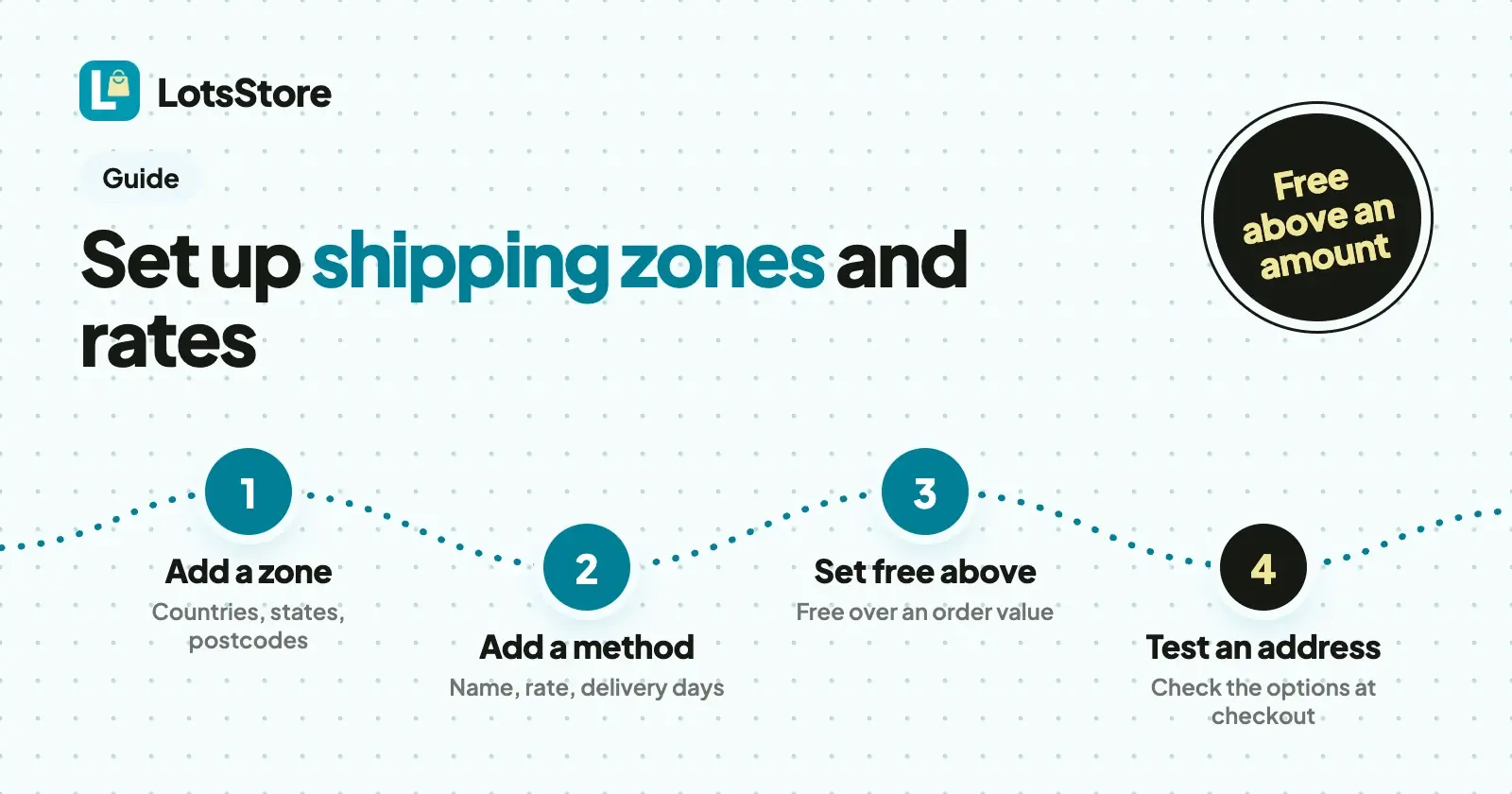
In your LotsStore dashboard, open Shipping, make a zone for each area you deliver to, and add a delivery method to each zone with its price. Add a Free above amount if you want free shipping on bigger orders. At checkout, each shopper sees only the delivery options that fit their address and cart.
Below are the steps, a worked example with made-up rates, the mistakes that cost owners money, and what LotsStore leaves to your carrier. I checked every setting against the live product and its API docs on 27 October 2026.
The three things you set
| Setting | What it is | Example |
|---|---|---|
| Zone | An area you deliver to: one or more countries, and optionally states and postcode rules | Your home country; two nearby countries |
| Method | A delivery option with a name, a rate and a delivery estimate, tied to one zone | Standard delivery, 4.00 |
| Free above | An order value at which a method's rate drops to zero | 40.00 |
Rates are typed in your store's currency, which follows the country you chose when you created the store.
Set it up, step by step
-
Open Shipping. In your dashboard, open your store, then Shipping in the store menu.
-
Fill in your origin. Under Business and fulfillment origin, add your business name, your origin address and your support details. The support email gets a confirmation link, and customer replies go to it once you confirm it. Fallback product weight (grams) is used only when a product has no weight of its own, and matters only if you limit a method by weight (see the FAQ).
-
Look at what's already there. Every new store starts with a zone for your own country, a Standard delivery method with its rate at zero, and Local pickup. Zero means free. Change it to your real rate before you publish the store.
-
Create a zone for each area. Click Add zone and fill in:
- Name: something you'll recognise, like "Home country" or "Nearby countries".
- Countries: two-letter country codes, separated by commas.
- State codes: optional, to narrow the zone to certain states or provinces.
- Postcode rules: optional. Use an exact code, a prefix such as
600*, or a number range such as600000-600099. - Excluded postcodes: codes that should never match this zone, even if a rule above would include them.
- Enabled: untick it to pause a zone without losing its setup.
A field you leave empty puts no limit on it. A zone with every field empty matches every address, which makes a handy "rest of the world" zone.
-
Add a method to each zone. Click Add method and set:
- Name and Description, which tell the shopper what they're choosing ("Standard delivery", "Tracked, with a signature").
- Type: Fixed rate charges the rate you enter. Free shipping is always zero. Local pickup is always zero and isn't tied to a zone. Rate band charges its rate too and is the type to use when a method carries order value or weight limits.
- Zone: the zone this method belongs to. A method left on "All / pickup" is offered everywhere.
- Rate: what the shopper pays.
- Free above: see the next step.
- Estimate (days): a minimum and a maximum number of days.
- Enabled: untick it to pause a method.
-
Set free shipping over an amount. Type the amount in Free above on a Fixed rate method. When the cart's items add up to that amount or more, the method's price becomes zero. The shopper still sees the method, priced at zero. Leave the field empty for no threshold.
-
Save shipping settings. Click the button at the bottom of the page. Removing a zone or method with the bin icon and then saving deletes it, so untick Enabled instead if you only want a pause.
-
Test it. Add a product to your cart, go to checkout and enter an address inside each zone, then one outside all of them. Check the options and the prices that appear.
Example: a three-zone setup with made-up rates
Say Juniper Candles (a made-up shop) ships from one country, to two nearby countries, and lets locals collect. The rates below are examples in the store's currency, not recommendations.
| Zone | Covers | Method | Rate | Free above | Estimate |
|---|---|---|---|---|---|
| Home country | Your own country's code | Standard delivery | 4.00 | 40.00 | 3 to 7 days |
| Home country | Your own country's code | Express delivery | 9.00 | none | 1 to 2 days |
| Nearby countries | Two other country codes | International standard | 12.00 | 80.00 | 7 to 14 days |
| None | n/a | Local pickup | 0.00 | n/a | 0 to 2 days |
A shopper in the home country with a 30.00 cart sees Standard at 4.00 and Express at 9.00, plus Local pickup. At 40.00 or more, Standard becomes 0.00 and Express stays 9.00. A shopper in a nearby country sees International standard only, plus Local pickup. Everyone else sees Local pickup alone.
What the shopper sees and what you get
At checkout the shopper enters a delivery address and LotsStore lists the methods that match it, each with its name, price and estimate. They pick one, and the order request that reaches you shows the method name and the shipping amount on the order. You accept the order, fulfil it with any carrier, and add the tracking number and link so the shopper can follow it. For the full order flow on Instagram and WhatsApp, read How to Sell on Instagram and WhatsApp Without Losing Orders in DMs.
Mistakes that cost money
- Leaving Standard delivery at zero. It is the starting setup, and it ships free until you change it.
- Overlapping zones. A method shows whenever its own zone matches the address. If an address falls in two zones, the shopper sees the methods of both. Keep zones apart, and use Excluded postcodes to carve out exceptions.
- A zone with no method. An address in that zone gets no delivery option, apart from Local pickup if you offer it. Give every zone at least one method.
- State codes that don't match. A state code only matches if it is written the way the checkout address records it. Test one address in each state before you rely on it.
- Free above set too low. The threshold uses the cart's items, so check that your margin still covers the shipping you give away.
What LotsStore doesn't do
- No live carrier rates. LotsStore doesn't ask carriers for prices. The rate is the number you type, so work it out from your carrier's rate card, add packaging, and round it.
- No shipping labels. Buy and print labels from your carrier, ship with any carrier, and add the tracking number and link to the order.
- No sales tax or VAT calculation. GST is built in: a GST-registered store sets a Shipping GST rate on the Taxes page. Elsewhere, include tax in your prices and rates.
What it costs
Shipping zones and rates are included on every plan. LotsStore is priced per store, never per sale: Starter is $12 a month or $120 a year for 1 store, and we take 0% of your sales. Products, orders, customers and teammates are unlimited. New accounts get 15,000 free credits, valid 90 days, no card. Prices checked on 27 October 2026 on the pricing page.
Manage shipping from ChatGPT or Claude
Everything above works in the dashboard, and nobody needs an assistant. If you already use ChatGPT or Claude, LotsStore works with the AI agent you already use: connect it on the setup page and give it your zones and rates in plain words, for example "add a zone for these two countries with International standard at 12.00, free above 80.00". It doesn't guess rates, so give it the numbers, and check the Shipping page afterwards. Adding a custom connector with full read and write depends on your ChatGPT plan, and on some plans only admins can add one, so check OpenAI's current plan details.
Setting shipping for several client stores? LotsStore for Agencies shows how each client store is set up from one account.
FAQ
How do shipping zones work in LotsStore?
A zone is an area you deliver to, defined by countries and, if you want, states and postcode rules. Each delivery method belongs to a zone, and a method appears at checkout only when the shopper's address matches its zone and the cart fits its limits.
How do I set free shipping over a certain amount?
On a Fixed rate method, type the amount in Free above. When the cart's items add up to that amount or more, the method's price becomes zero. The shopper still sees the method, priced at zero.
Can I charge different shipping to different countries or states?
Yes. Make one zone per area, with its countries, states or postcode rules, and add a method with its own rate to each. Keep the zones from overlapping, or shoppers in the overlap see the methods of both.
Can I charge shipping by weight or order value?
Yes. A method can carry a minimum and maximum order value and a minimum and maximum parcel weight in grams, and it appears only when the cart fits. Set these limits through your AI assistant or the REST API; the dashboard form shows the rate, free threshold and estimate. Weight comes from each product's weight, with your fallback weight (500 grams until you change it) when a product has none.
Does LotsStore show live carrier rates, print labels or calculate tax?
No. Shipping rates are the ones you set, labels come from your carrier, and sales tax and VAT aren't calculated. GST is built in, including a shipping GST rate for GST-registered stores. Elsewhere, include tax in your prices and rates.
What happens if no zone matches the shopper's address?
The shopper gets no delivery option for that address, apart from Local pickup if you offer it. Add a zone with every field empty to cover the rest of the world, or leave it out if you don't deliver there.
Sources
Checked on 27 October 2026: LotsStore API docs, LotsStore skill, LotsStore setup page, LotsStore pricing, the live pricing facts for LotsStore.