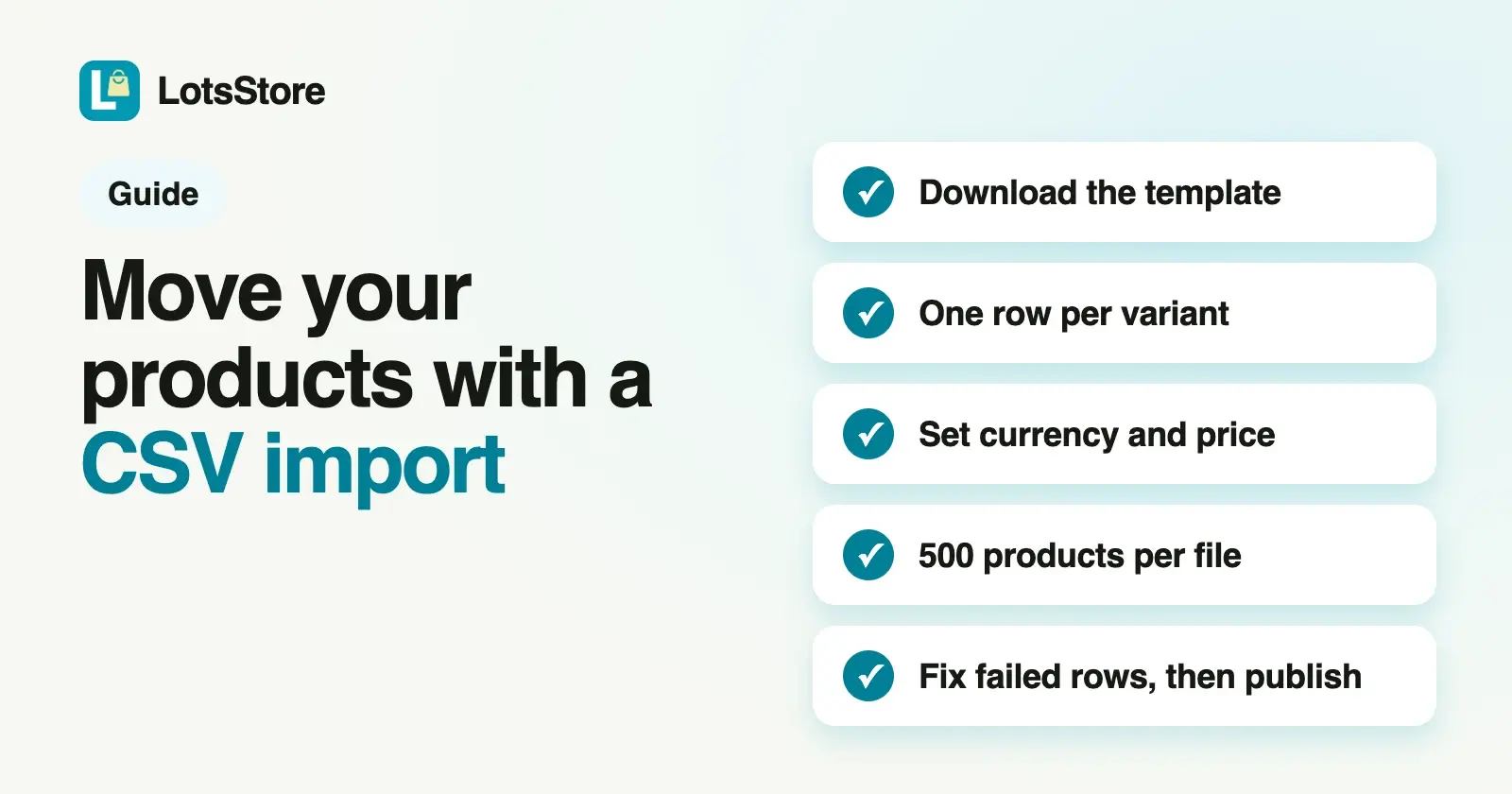
To move your products to LotsStore, open Products, click Import / export, download the template, copy your products into its columns, and upload the file. One file takes up to 500 products and 2 MB, with variants, prices, stock, categories, collections and image links. Rows that fail come back as a list you can download. Below are the columns, the rules the importer follows, and the mistakes that cost people an afternoon.
Every LotsStore step below was checked against the product's import code and live site on 30 October 2026. The two outside facts (Shopify and WooCommerce exports) come from those companies' own help pages, checked the same day.
What you need first
- A LotsStore store. Open one first, and pick the country you sell from, because it sets your currency. New accounts get free credits when they sign up, no card, enough to run one store for about a month (pricing).
- A spreadsheet of your products. An export from your old store, or a sheet you keep yourself. Excel, Google Sheets and Numbers all work, as long as you save the result as a CSV file (choose "CSV UTF-8" if your program offers it, so names and currency signs survive).
- Store write access. Owners, admins, managers and staff can import. Viewers cannot. Exporting your current catalog is for owners and admins.
The whole job on one page
| Step | What you do | Where |
|---|---|---|
| 1. Get the template | Download it and look at the example row | Products, Import / export, Download template |
| 2. Create categories and collections | Only if your products use them | Products, Categories and Collections |
| 3. Copy your products in | One row per variant, same handle for the same product | Your spreadsheet |
| 4. Check five things | Currency, price, status, stock, images | Your spreadsheet |
| 5. Upload | Choose the file, click Import products | Import and export page |
| 6. Read the result | Received, Imported, Failed, warnings | Same page |
| 7. Look at a few products | Open them in the dashboard and the storefront | Products |
Step 1: Download the template
In the dashboard, open Products and click Import / export. The page is called Import and export. Under CSV format, click Download template. You get a file with one example product in it.
The importer reads columns by their exact names, so keep the header row as it is. These are the 22 columns, in the template's order:
| Column | What goes in it |
|---|---|
title | The product name. The only required column. |
subtitle | A short summary shoppers see. |
description | The full description. |
handle | The product's identity in the file, and its address ending. Rows with the same handle become one product. |
status | draft or published. Blank means draft. |
categories | Category names, separated by a vertical bar: Books|Gifts |
collection | One collection name. |
images | Image links, separated by a vertical bar. The first one is the main image. |
image_alt | A description of the first image, for accessibility. |
variant_title | The variant's name, such as Paperback / Blue. |
sku | Your stock code for the variant. |
barcode | Barcode, if you use one. |
price | A plain number such as 499.00. |
currency | Your store's currency code, such as USD or INR. |
stock | How many you have. A whole number. |
allow_backorder | true to keep selling at zero stock. Anything else means no. |
option1_name, option1_value | The first option, such as Size and M. |
option2_name, option2_value | A second option, such as Color and Blue. |
option3_name, option3_value | A third option. |
Step 2: Create categories and collections first
Categories and collections are matched by name, and the match ignores capital letters. The import does not create them. If a name in your file has no match, the product is still imported, without that category or collection, and the result shows a warning such as "Category not found: Gifts". So open Categories and Collections from the Products page, create the ones you want, and spell them the same way in the file.
Step 3: Put your products in the columns
One row per variant. A T-shirt in three sizes is three rows with the same handle, each with its own option1_value (S, M, L), sku, price and stock. A product with no sizes or colours is a single row, and you can leave the option columns empty. If you leave handle empty, rows with the same title are grouped instead.
Every row needs a title, and the first row of a product sets the rest. Repeat the title on each variant row. Subtitle, description, status, categories, collection and images are read from the first row for that handle, so put the full product details on that row and leave them blank on the others.
Options. Each row can carry up to three option pairs. Give each pair a name (Size) and a value (M); a pair with only one of the two is ignored.
Here is a fictional example. The first row sets the product, and the next two add sizes:
title,handle,status,categories,images,variant_title,sku,price,currency,stock,option1_name,option1_value
Linen shirt,linen-shirt,published,Shirts,https://example.com/linen-front.jpg,Small,LIN-S,39.00,USD,12,Size,S
Linen shirt,linen-shirt,,,,Medium,LIN-M,39.00,USD,20,Size,M
Linen shirt,linen-shirt,,,,Large,LIN-L,39.00,USD,8,Size,L
(That example leaves out columns you do not need. Keep all 22 headers in your real file so it matches the template.)
Step 4: Check five things before you upload
These are the places where the importer does something you might not expect.
- Fill in
currency. If a row has no currency, the importer uses INR. A store that sells in USD or GBP should put its own code on every row. - Never leave
priceempty. A blank price is read as 0.00, and the product goes in at zero. A variant row with no price uses the price from the product's first row. - Write prices as plain numbers.
1299.00works.1,299,$12andRs 499are rejected, and the error names the row. - Decide what
statusshould be. Products are drafts unless you writepublished. Starting as drafts is the safer choice: import, look at the products, then publish. Any other word instatusstops the import. - Leave
stockblank only on purpose. A number turns on stock counting for that variant and sets the quantity. A blank means LotsStore does not track stock for it. Stock must be a whole number of 0 or more.
Images are links, separated by a vertical bar. Use links that stay online, then open a few imported products on your storefront to confirm the pictures show.
Step 5: Upload
On the Import and export page, under Upload catalog CSV, click the file box, choose your file, and click Import products. The limits shown on the page:
- 500 products per file. This counts products, not rows, so a product with six variants counts once.
- 2 MB per file. A bigger catalog goes in several files.
If your catalog is larger, split it into files of 500 products or fewer and upload them one after another. Keep all rows for one product in the same file.
The page says imports are idempotent, so uploading the same unchanged file again should not create the products twice.
Step 6: Read the result
When the import finishes you see three numbers: Received, Imported and Failed. With nothing failed, the page says Catalog import completed.
There are two kinds of problem, and they behave differently.
- A problem in a row stops the whole file before anything is imported. A missing
titleon any row, a bad price, a badstockor a badstatusbrings up a message such as "Row 14: price must be a non-negative number". The row number matches the row in your spreadsheet, where row 1 is the header. Fix it and upload again. Nothing was half-imported. - A product that fails during the import is listed. The other products still go in. Click Download failed rows to get
lots-store-import-errors.csv, which has two columns, the product title and the error. Fix those products in your spreadsheet and upload them as a small file of their own. - Warnings appear in an amber box for imported products, such as a category or collection that was not found, or a follow-up step (category, collection or stock) that did not apply. The page lists the first eight. The product itself is in your catalog.
Step 7: Look at a few products
Open three or four products from Products: one with variants, one with images, one with a category. Check the price and currency, the stock per variant, and the pictures. Then, when you are happy, publish. The guide to selling online from scratch covers payments, shipping and your first test order, and setting up shipping zones and rates covers delivery prices.
Moving from another store
The CSV import is for products. Your old platform's file has its own column names, and LotsStore reads the names in its template, so the job is to copy your data from one set of columns into the other in a spreadsheet.
What the two platforms say about their own exports (checked on 30 October 2026):
- Shopify. In the admin, go to Products and click Export. You choose which products and a spreadsheet or plain CSV file type, and Shopify says a UTF-8 CSV is the only file format it supports for exporting and importing products. Its help page warns that sorting the CSV in a spreadsheet can separate product variants or image URLs from their products (Shopify: export products). So copy the columns across first, and keep your original export untouched.
- WooCommerce. In Products, All Products, click Export, choose the columns, product types and categories, and generate the CSV. WooCommerce says the exported CSV follows the same schema as its import format (WooCommerce: product CSV importer and exporter).
For any other platform, use its own export or report page. Do not rely on its column names matching ours.
Your old store's price, SKU, stock and images map to the matching LotsStore columns. Keep your original export until you have checked the new catalog, and add anything the template has no column for in the dashboard afterwards.
If your file does not fit the template
Reshaping a messy spreadsheet is slow by hand. The AI agent you already use can do the reshaping: give it your sheet and the template, and ask it to rewrite your products into the template's columns, then you check the result and upload it. LotsStore also connects to ChatGPT, Claude and other MCP clients (connect your agent), and an agent connected to your store can add up to 100 products in one call, as drafts unless you ask for published. The dashboard import does the same job without any agent, and takes up to 500 products per file.
Export your catalog to see a finished file
Owners and admins can click Export current catalog on the same page. It downloads your products in the same columns as the template, one row per variant. It is the quickest way to see what a finished file looks like for your own store, and a handy backup. Cells that begin with a character a spreadsheet could read as a formula get a leading apostrophe on export, and the import removes it again.
If you set up stores for clients
If you build stores for clients, each store has its own Import and export page, so a client's catalog goes in with the same template and the same 500-product limit per file. Team roles decide who can import: owners, admins, managers and staff can, viewers cannot. LotsStore for Agencies covers running several client stores from one account.
Common mistakes
- Leaving currency empty on a non-INR store. The prices import in INR.
- Leaving price empty. The product imports at 0.00.
- Renaming the headers. The importer reads the template's exact names.
- Typing a price as
1,299or$12. It is rejected as not a number. - Expecting categories to be created. Create them first, or accept the warning.
- Uploading 600 products in one file. The limit is 500 products.
- Skipping the check. Open a few products before you publish anything.
FAQ
How many products can I import at once?
Up to 500 products per file, and the file can be up to 2 MB. The 500 counts products, not rows: a product with several variants counts once. For a larger catalog, split it into several files.
What columns does the LotsStore CSV need?
Only title is required. The template has 22 columns, including handle, status, categories, collection, images, sku, price, currency, stock and up to three option name and value pairs. Download the template from Products, Import / export, and keep its header row.
Do variants like size and colour work?
Yes. Give every variant its own row with the same handle, and fill the option columns, such as Size and M. Each variant has its own SKU, price and stock. Each row can carry up to three options.
Does the import create categories and collections?
No. They are matched by name against the ones already in your store. A name that is not found does not stop the import: the product is imported without it, and you see a warning.
Will my imported products be live straight away?
Only if you write published in the status column. A blank status means draft, so you can check the products before shoppers see them.
What happens if some rows are wrong?
A mistake in a row, such as a missing title or a price that is not a number, stops the file with a message that names the row, and nothing is imported. If a product fails during the import, the others still go in, and you can download a list of the failures with their errors.
Can I use a Shopify or WooCommerce export directly?
Not as it is. LotsStore reads its own column names from the template, so copy your data into the template's columns first. Both platforms describe their own exports on their help pages, linked above.
Does the import move my customers and orders?
No. The CSV import is for products. It brings in titles, descriptions, variants, prices, images, categories, collections and stock.