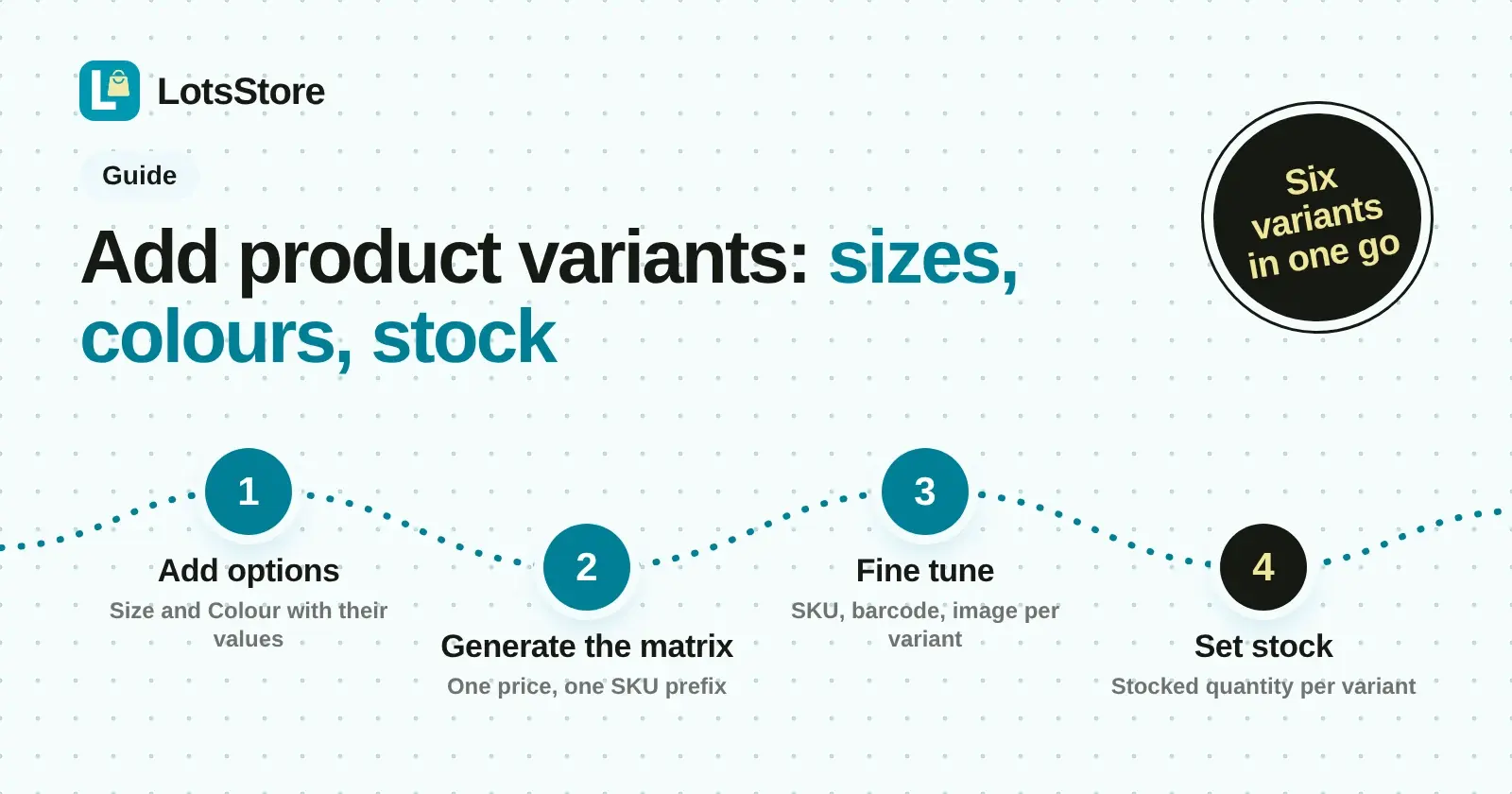
To add product variants in LotsStore, open the product, add your options (for example Size with the values Small, Medium, Large), save the product, then use Generate variant matrix to create every combination in one go. After that you can fine tune each variant's SKU, barcode, price and image, and set its stock on the Inventory page.
I built LotsStore so a shirt that comes in three sizes and two colours is one product with six purchasable variants, not six separate products. Here is the whole flow, with the labels exactly as they appear in your dashboard.
What a variant is in LotsStore
A product is the thing shoppers browse: "Cotton tee". A variant is the specific version they buy: "M / Black". Each variant has its own price, SKU, barcode, image and stock count. Your options (Size, Colour) decide which variants can exist.
Variants are not a paid extra. Every plan includes unlimited products and variants, and inventory per variant, as listed on the pricing page.
Step 1: Add the product and its options
- Open your store, go to Products and choose Add product (or open an existing product). On the new product form you enter the Product title, Price, Currency, Category, Description, Availability and Photos, and choose Published or Draft under Status.
- On the product's page, find the Product options section ("Define choices such as size, color, format, or pack quantity").
- Press Add option. In Option name type
Size. In Values type the values separated by commas:Small, Medium, Large. - Press Add option again for the second option:
Colourwith the valuesBlack, White. - Press Save product. The page tells you to save after changing option definitions, and existing variants must use values from these options.
If you made a mistake, the bin button on an option row removes it.
Step 2: Generate every combination at once
Once the product has options, the Variants and pricing section shows Generate variant matrix. It tells you how many combinations are possible and how many are missing. With three sizes and two colours that is 6 possible, 6 missing.
- Every missing combination is listed with a tick box, named like
Small / Black. They start ticked. Use Select all missing to tick or untick the lot, or untick the ones you will never make (a colour that only comes in two sizes, for instance). - Enter the Price (in your store's currency). Optionally add a Compare-at price to show a struck-through sale price.
- Enter a SKU prefix, for example
TEE. LotsStore numbers the variants for you and uppercases them:TEE-01,TEE-02and so on. - Tick Track inventory if you want LotsStore to count stock for these variants. Tick Allow backorders only if you want to keep selling at zero stock.
- Press Create 6 variants (the button shows the number you ticked).
Existing variants are never duplicated. If you add a new colour later, the matrix shows only the combinations you do not have yet.
The matrix gives every variant the same price. If XL costs more, change it in the next step.
Step 3: Fine tune each variant
Under Variants and pricing, each variant is a row showing its title, SKU and price. Open one to edit:
- Title, SKU and Barcode.
- Price and Compare-at price.
- Variant image URL: "Shown when customers select this variant". Use it to show the black tee's photo when the shopper picks Black.
- The option selectors, so you can correct which size and colour this variant is.
- Track inventory and Allow backorders.
Press Save variant. If a product has more than one variant, each one also has a delete button; a product always keeps at least one.
To add a single variant by hand instead of the matrix, open Add variant, give it a Title such as Large / Blue, choose a value for each option, and press Create variant. You need to save at least one product option first.
Variants can also carry their own weight, which matters for shipping rates by weight, and their own tax category.
Step 4: Set stock for each variant
Stock is not set in the matrix. Open Inventory in your store. Every variant is a row with Product, Variant, Reserved, Incoming, Available and Stocked quantity. Type the Stocked quantity for each variant and press Save. Search the list to find a product quickly.
A variant only counts stock if Track inventory was ticked. Reserved is stock held by open orders, and Available is what shoppers can still buy.
Adding hundreds of variants from a spreadsheet
If you already have the catalog in a spreadsheet, skip the screens above. In the import file, give every variant its own row with the same handle, and fill option1_name and option1_value (for example Size and M), up to three options per row, plus sku, price and stock. The full walkthrough is in how to move your products to LotsStore with a CSV import.
Planning variants for a clothing brand
Size by colour is the classic case, and a photo per colour plus stock per size is exactly what the steps above give you. If you are still choosing a platform for a clothing store, I compared them in Best Ecommerce Platforms for a Clothing Brand (2026).
FAQ
How do I add product variants in LotsStore?
Open the product, add options under Product options (for example Size with Small, Medium, Large), save the product, then press Create variants in Generate variant matrix under Variants and pricing.
Is there a limit on variants?
The pricing page lists unlimited products and variants on every plan.
Can each variant have its own price, SKU and photo?
Yes. Each variant has its own Price, Compare-at price, SKU, Barcode and Variant image URL.
Where do I set stock for each size?
On the Inventory page, in the Stocked quantity column for that variant. Tick Track inventory on the variant first.
Can I import variants from a spreadsheet?
Yes. Use one row per variant with the same handle and up to three option name and value pairs per row.